
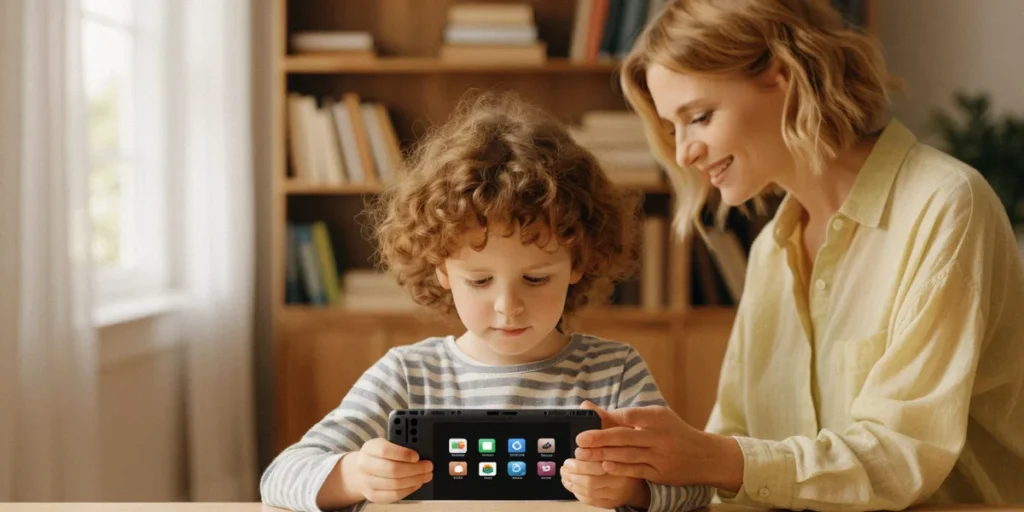
Nintendo Parental Controls: Setting Screen Time Limits for Kids
We’ve all been there. It’s a Tuesday evening in February, dinner is getting cold, and your eight-year-old is deep in a Mario Kart race, absolutely convinced that “just one more cup” is a reasonable request. We’ve had that exact standoff in our own living rooms, and honestly, we used to handle it the hard way: nagging, negotiating, and eventually just unplugging the console. Then we discovered that Nintendo builds parental controls right into its hardware and apps, and it changed how our families handle screen time. Whether your household runs on a Nintendo Switch, an old Wii tucked under the TV, or a Wii U that still gets love, there are free tools to set daily limits, bedtime alarms, and content restrictions — and they take about fifteen minutes to configure.
Why Nintendo Parental Controls Matter for Canadian Families
Gaming is a normal part of growing up in Canada. From long winter evenings in Winnipeg to rainy spring weekends in Vancouver, a console in the living room is a staple in many households. But without some structure, screen time can quietly creep from thirty minutes to three hours. That’s where parental controls earn their keep — they turn vague rules into automatic boundaries, and they remove the daily argument from the equation.
The Canadian Paediatric Society’s Screen Time Recommendations
The Canadian Paediatric Society (CPS) recommends that children aged 2 to 5 get no more than 1 hour of screen time per day, and that older children have consistent, predictable limits rather than open-ended access. The CPS also emphasizes that screen time shouldn’t replace sleep, physical activity, or face-to-face interaction. Nintendo’s parental control tools map onto this advice nicely: you can set a hard daily cap, schedule a bedtime alarm that locks the console, and review weekly play reports to see whether reality matches your intentions.
How Gaming Fits into Canadian Family Life
Video games are one of the most common leisure activities in Canadian homes, and for good reason — they’re social, they’re affordable entertainment per hour, and they give siblings something to do together when it’s minus 20 outside. The goal isn’t to eliminate gaming. It’s to make it a predictable, bounded part of the day. A console that shuts itself off at 7:30 p.m. is far less contentious than a parent who has to be the bad guy every single night.
Setting Up Parental Controls on Nintendo Switch
The Nintendo Switch has the most polished parental control system Nintendo has ever shipped, and the best part is that it lives on your phone. The Nintendo Switch Parental Controls app is available for free on iOS and Android, and once it’s linked to your console, you can manage everything remotely — even when you’re at work and the kids are at home.
Downloading and Installing the Nintendo Switch Parental Controls App
- Open the App Store (iPhone) or Google Play Store (Android) and search for “Nintendo Switch Parental Controls.”
- Download and install the app — it’s free, with no subscription required.
- Launch the app and sign in with the Nintendo Account that’s linked to your child’s console.
- Follow the on-screen prompts to pair the app with your Switch.
Linking Your Nintendo Account and Console
On the Switch itself, go to System Settings > Parental Controls and select Set Parental Controls. The console will display a registration code. Enter that code in the mobile app when prompted. Once linked, the app becomes your dashboard for daily limits, restriction levels, and play activity reports. If you have multiple Switch consoles in the house, each one can be linked to the same app, which is handy for families with a console in the living room and a Switch Lite for travel.
Configuring Daily Time Limits and Bedtime Alarms
Inside the app, tap Play-Time Limits to set how many minutes per day your child can play. You can also define a Bedtime Alarm, which pauses the game and displays a notification when the time is up — the console won’t just cut to black mid-level, which reduces meltdowns. When the daily limit is reached, the Switch displays a warning and eventually suspends gameplay. You can grant a temporary extra-time bonus from your phone if it’s a snow day or a birthday, which gives you flexibility without dismantling the whole system.
Using Parental Controls on Nintendo Wii and Wii U
Older Nintendo hardware still has solid parental control options, which is good news if you’ve got a Wii or Wii U in a basement rec room or cottage. These systems use a PIN-based system rather than a smartphone app, but the fundamentals are the same: restrict content, control online features, and manage play time.
Setting a PIN on Wii and Wii U
On the Wii, go to Wii Options > Parental Controls and create a 4-digit PIN. On the Wii U, open System Settings > Parental Controls and do the same. Choose a PIN your kids won’t guess — avoid birth years and simple sequences like 1234. Write it down somewhere safe, because resetting it involves a support call (more on that below).
Restricting Online Play and Purchases
Both systems let you block or limit online features. On the Wii U, you can disable online play, restrict internet browsing, and prevent purchases in the Nintendo eShop. On the Wii, you can block online services tied to specific games. This matters if you’re concerned about in-game communication with strangers — a real consideration for younger players.
Using the Wii U GamePad to Monitor Play Time
The Wii U allows setting time limits via the Parental Controls menu, accessible through the Wii U GamePad. You can define daily play windows and receive on-screen notifications when time is running out. It’s not as granular as the Switch app, but it’s effective for setting a firm “console off at 8 p.m.” rule without standing over your child’s shoulder.
Customizing Restrictions for Different Age Groups
A seven-year-old and a thirteen-year-old need very different setups. Here’s how we approach it in our own homes.
For Younger Children (Ages 3-7)
- Set a daily limit of 30 to 60 minutes, in line with CPS guidance.
- Enable a bedtime alarm that locks the console well before sleep.
- Restrict game ratings using ESRB ratings, which are used in Canada to indicate age-appropriate content. Block anything above E or E10+.
- Disable all online communication and purchases.
- Keep the console in a shared space like the living room.
For Tweens and Teens (Ages 8-14)
- Increase daily limits gradually — 90 minutes on weekdays, more on weekends.
- Allow T-rated games selectively, reviewing each title together first.
- Permit online play with friends, but keep the eShop purchase restriction in place so you approve spending.
- Review the weekly play activity report together as a conversation starter, not a surveillance tool.
Troubleshooting Common Parental Control Issues
Things go wrong. PINs get forgotten, apps stop syncing, and clever kids find workarounds. Here’s how we handle the most common problems.
Forgot Your PIN? Here’s How to Reset It
On the Switch, you can reset the PIN through the Parental Controls app if you still have access to your Nintendo Account. On Wii and Wii U, a forgotten PIN requires contacting Nintendo Canada, which offers support for parental controls via their website and phone line. Have your console serial number handy — support will walk you through the reset process.
What to Do If Your Child Bypasses Restrictions
If your child creates a new user profile, factory resets the console, or plays on a friend’s system, the technical controls won’t help. That’s a conversation problem, not a settings problem. We recommend tying console privileges to household expectations and being clear about why the limits exist. If the app stops syncing, check that both the console and phone have the latest system updates, and re-link the console if needed.
Balancing Screen Time with Family Gaming
Parental controls work best when they’re paired with actual family gaming, not used as a wall. Some of our favourite memories involve four-player Mario Kart chaos on a Sunday afternoon. The controls exist to protect that time, not eliminate it.
Great Family-Friendly Multiplayer Games on Nintendo Switch
- Mario Kart 8 Deluxe — up to four players locally, easy for all ages.
- Super Mario Party — short rounds, perfect for a 45-minute window.
- Animal Crossing: New Horizons — collaborative and calm.
- Super Smash Bros. Ultimate — great for tweens and teens.
- Overcooked! 2 — cooperative chaos that teaches teamwork.
Using Screen Time as a Teaching Moment
Instead of framing limits as punishment, we frame them as practice for self-regulation. Show your kids the weekly play report. Ask them what felt like too much. Let them suggest their own limits occasionally. Kids who help set the rules are far more likely to follow them.
FAQ
Is the Nintendo Switch Parental Controls app really free?
Yes. The Nintendo Switch Parental Controls app is available for free on iOS and Android, with no subscription or in-app purchase required.
Can I set different limits for different children on the same Switch?
Yes. Each user profile on the console can have its own parental control settings, so a five-year-old and a twelve-year-old can have completely different daily limits and rating restrictions.
Do Wii and Wii U parental controls still work in 2025?
Yes. The PIN-based parental control systems on Wii and Wii U remain functional, though online services for some older titles have been discontinued.
What ESRB rating should I allow for my child?
For ages 3-7, stick to E-rated titles. For ages 8-10, E10+ is generally appropriate. For tweens and teens, T-rated games are usually fine, but review each one — ESRB ratings are used in Canada to indicate age-appropriate content, so check the descriptor boxes on the back of the case.
How do I contact Nintendo Canada about parental controls?
Nintendo Canada offers support for parental controls via their website and phone line. Their support team can help with PIN resets, account linking, and app troubleshooting.
Parental controls on Nintendo hardware are a genuinely useful tool, but they’re not a substitute for conversation. Set your limits, link the app, review the reports — then sit down and play a round of Mario Kart with your kids. The goal isn’t fewer games. It’s better ones, at better times, with the people you love.