
Connecting a Wii to a Modern TV: Cables, Adapters and Picture Quality
If you’ve pulled your old Nintendo Wii out of a basement box here in Canada, you’ve probably run into the same wall many families do: the cables that came with the console don’t fit your new 4K TV. That little trio of yellow, white, and red plugs has nowhere to go on a panel that only offers HDMI inputs. It’s a frustrating moment, especially when the kids are excited to play Wii Sports again. The good news is that there are several solid ways to get your Wii running on a modern TV, and we’ve tested enough of them to walk you through the options, the costs, and the picture quality you can realistically expect.
Why Your Old Wii Cables Won’t Fit Your New TV
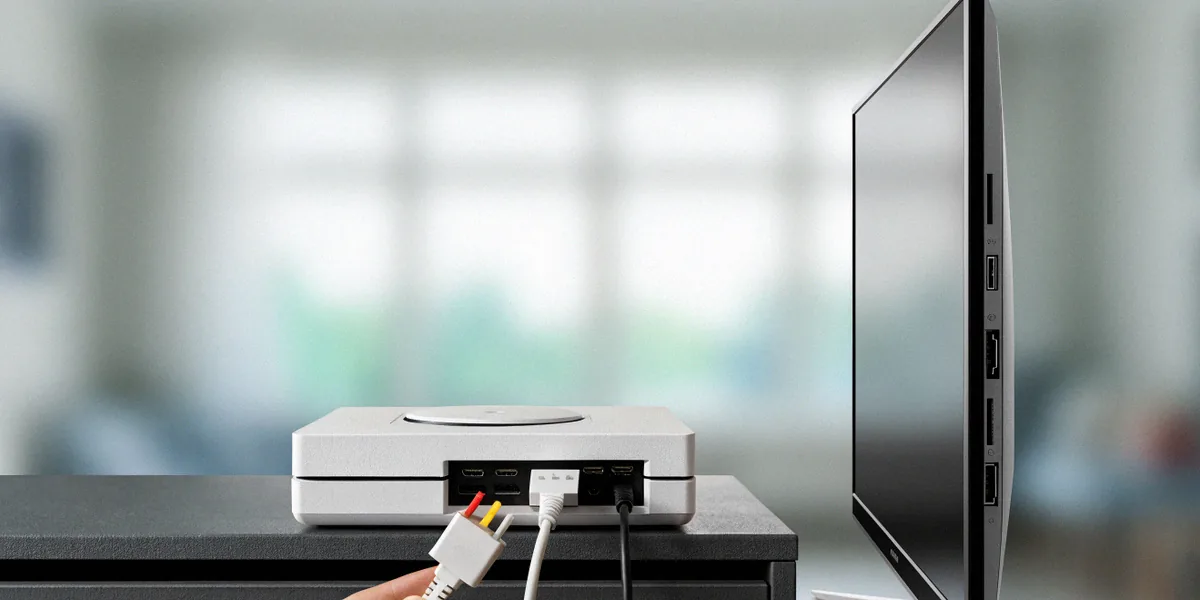
The Nintendo Wii shipped with a composite cable, the familiar yellow/white/red setup that carries standard-definition video and stereo audio. Composite video is an analog signal that maxes out at 480i, which is roughly the resolution of a DVD. Component cables (green/blue/red for video, plus white/red for audio) also existed for the Wii and delivered 480p, a modest step up. HDMI, by contrast, is a digital connection that carries both video and audio in one plug and supports resolutions far beyond anything the Wii can output.
Here’s the part that catches most people off guard: most TVs sold in Canada since 2015 lack composite inputs entirely. Manufacturers dropped analog ports to cut costs and slim down chassis designs, assuming everyone had moved to HDMI devices. So even if you find the original Wii cable, there’s simply nowhere to plug it in on a typical Samsung, LG, TCL, or Hisense set from the last decade.
The Three Main Wii Cable Types
- Composite (480i): The stock cable included with every Wii. One yellow video plug plus white and red audio plugs. Soft, slightly blurry picture.
- Component (480p): Sold separately by Nintendo and third parties. Green, blue, and red video plugs plus white and red audio. Noticeably sharper than composite on a CRT, but still limited.
- HDMI (via adapter): The Wii has no native HDMI output, so any HDMI connection requires an adapter or converter that digitizes the analog signal.
What Ports Are on Your TV?
Before buying anything, flip your TV around or check the side panel. Look for a cluster of round RCA jacks, usually colour-coded. If you see them, you might get away with a direct composite connection, though the picture will be rough on a large 4K screen. If you only see HDMI ports and maybe a coaxial cable input, you’ll need an adapter. Check your TV’s manual or the manufacturer’s spec sheet online if you’re unsure.
Option 1: Using a Wii-to-HDMI Adapter
This is the solution we recommend to most Canadian families, and it’s the one we use ourselves. A Wii-to-HDMI adapter is a small dongle that plugs into the Wii’s AV Multi Out port on the back of the console, then outputs a clean HDMI signal to your TV. Brands like PORTHOLIC, GANA, and Dingsun make these, and they typically cost $20-$40 on Amazon.ca. They usually upscale the Wii’s 480p signal to 720p or 1080p, which looks far better than composite on a modern panel.
The trade-off is input lag. Cheap adapters often add a few frames of delay, which matters in fast-paced games. For Wii Sports bowling or a casual round of Mario Kart Wii, most players won’t notice. For something like a rhythm game or a precision platformer, it can be irritating.
How to Set It Up
- Plug the adapter into the Wii’s AV Multi Out port on the back of the console.
- Connect an HDMI cable (usually not included) from the adapter to any free HDMI input on your TV.
- Power on the Wii and switch your TV to the correct HDMI input.
- In the Wii settings menu, set the display to 480p if your TV supports it, and set the aspect ratio to match your preference (16:9 widescreen or 4:3).
- Enable Game Mode on your TV to reduce input lag.
Pros and Cons of Cheap Adapters
- Pros: Cheap, plug-and-play, no external power needed in most cases, widely available on Amazon.ca.
- Cons: Some input lag, upscaling quality varies by brand, cheap units can introduce colour banding or audio buzzing.
Option 2: Composite-to-HDMI Converters and Upscalers
If you want to keep using the original Wii composite cable, a composite-to-HDMI converter box will take that analog signal and digitize it for your TV. Brands like Tensun and Rybozen sell these for around $25-$50 on Amazon.ca. They work, but the picture quality is usually no better than a direct Wii-to-HDMI dongle, and some add significant lag.
For enthusiasts, dedicated upscalers are a different category entirely. Devices like the RetroTINK 2x-Mini or the OSSC (Open Source Scan Converter) use higher-quality processing to convert 480i and 480p signals to 480p or 960p with minimal lag and clean colours. The RetroTINK 2x-Mini costs around $100 USD and is available online through the official RetroTINK store or resellers. The OSSC runs higher, often $150-$200 USD. These are overkill for most families but genuinely worth it if you care about picture quality and play games where timing matters.
Budget Converters vs. Dedicated Upscalers
A $30 composite-to-HDMI box will get you a working picture with acceptable colour. A RetroTINK will get you a sharper, cleaner image with virtually no added lag. If your family mostly plays Wii Sports and Mario Kart, save your money and grab a Wii-to-HDMI adapter. If you’re into retro gaming more broadly and want to run a Wii, GameCube, or SNES through the same setup, the RetroTINK is a long-term investment.
Where to Buy in Canada
Amazon.ca carries the budget adapters and converters. Canada Computers stocks some AV conversion gear in-store and online, though selection varies by province. For RetroTINK and OSSC units, you’ll typically order direct from the manufacturer’s website or from specialist retro gaming retailers, with shipping to Canada adding a bit to the cost.
Option 3: Keeping It Retro with a CRT TV
Some purists insist the Wii looks best on a CRT TV, and honestly, they have a point. Composite and component signals were designed for CRT displays, and the soft, slightly glowing image of a good Trinitron or Toshiba set is how many of us remember Wii Sports looking in 2006. On a CRT, there’s no upscaling, no input lag, and no aspect ratio confusion.
The catch is practical. CRT TVs are heavy, take up space, and are increasingly hard to find in good working condition. They also max out at 480i or 480p, so you’re not gaining resolution, just authenticity.
Finding a CRT in Canada
CRT TVs can still be found on Kijiji and Facebook Marketplace in Canada, often for free or under $50, since many people just want them gone. Check local listings in your city, and be prepared to drive to pick one up. Test it before you haul it home if possible, and bring a friend, because a 27-inch CRT weighs 60-80 pounds.
When a CRT Makes Sense
A CRT is a good fit if you have a dedicated game room, you play a lot of GameCube and Wii titles that rely on precise timing, or you simply prefer the original look. For a living room setup shared with a modern 4K TV, it’s usually not worth the space.
Tweaking Picture Quality on Your Modern TV
Once you’ve got the Wii connected, a few TV settings can make a real difference. The Wii outputs at 480i or 480p, and that signal upscales poorly to 4K. You’re never going to get a crisp, native-looking image, but you can make it look considerably better than the default.
TV Settings to Change
- Aspect ratio: Set to 4:3 for most Wii games, or 16:9 if the game supports widescreen (many first-party Nintendo titles do).
- Overscan: Turn it off if your TV has the option. It crops the edges of the image and can hide HUD elements.
- Game Mode: Enable it. This disables most post-processing and cuts input lag significantly.
- Sharpness: Lower it. Adding artificial sharpness to an already soft signal creates halos and artifacts.
- Picture mode: Use “Standard” or “Game,” not “Vivid” or “Dynamic,” which oversaturate colours.
Managing Expectations for Wii Games
Even with a good adapter and perfect settings, Wii games will look soft on a 4K TV. The console renders at 480p, and no adapter can invent detail that isn’t there. Think of it like watching a DVD on a 4K screen: watchable, nostalgic, but not sharp. If you accept that going in, you’ll enjoy the experience far more.
Our Recommendation for Canadian Families
For most families, a simple Wii-to-HDMI adapter from PORTHOLIC, GANA, or a similar brand is the easiest and cheapest way to get the Wii running on a modern TV. At $20-$40 on Amazon.ca, it’s a low-risk purchase that solves the problem in about two minutes. If you’re a retro gaming enthusiast who wants the best possible picture and minimal lag, a RetroTINK 2x-Mini is worth the roughly $100 USD, especially if you also play GameCube or other retro consoles. All the budget options are available at Canadian retailers like Amazon.ca, Best Buy, and Canada Computers.
The Wii remains one of the best family consoles ever made, and with the right adapter, you can enjoy Wii Sports, Mario Kart Wii, and New Super Mario Bros. Wii on your modern TV without breaking the bank. It’s a small investment to bring back a lot of memories.
FAQ
Do I need a special adapter to connect a Wii to a 4K TV?
Yes, in almost every case. Most TVs sold in Canada since 2015 lack composite inputs, so you’ll need a Wii-to-HDMI adapter or a composite-to-HDMI converter to connect the console.
Will a Wii-to-HDMI adapter make Wii games look sharper?
It will make them look cleaner than composite on a modern TV, but the Wii still outputs at 480i or 480p. The adapter upscales the signal, but it can’t add detail that wasn’t there to begin with.
Is there a difference between a cheap adapter and a RetroTINK?
Yes. Cheap adapters cost $20-$40 and work fine for casual play, but they can add input lag and introduce colour artifacts. A RetroTINK 2x-Mini, around $100 USD, offers cleaner processing and near-zero lag, which matters for timing-sensitive games.
Can I still find a CRT TV in Canada?
Yes. CRT TVs regularly appear on Kijiji and Facebook Marketplace across Canada, often for free or under $50. Just be ready to transport a heavy set and test it before buying.
What TV settings should I change for the Wii?
Enable Game Mode, turn off overscan, lower sharpness, and set the aspect ratio to 4:3 or 16:9 depending on the game. These changes reduce input lag and prevent the image from looking over-processed.